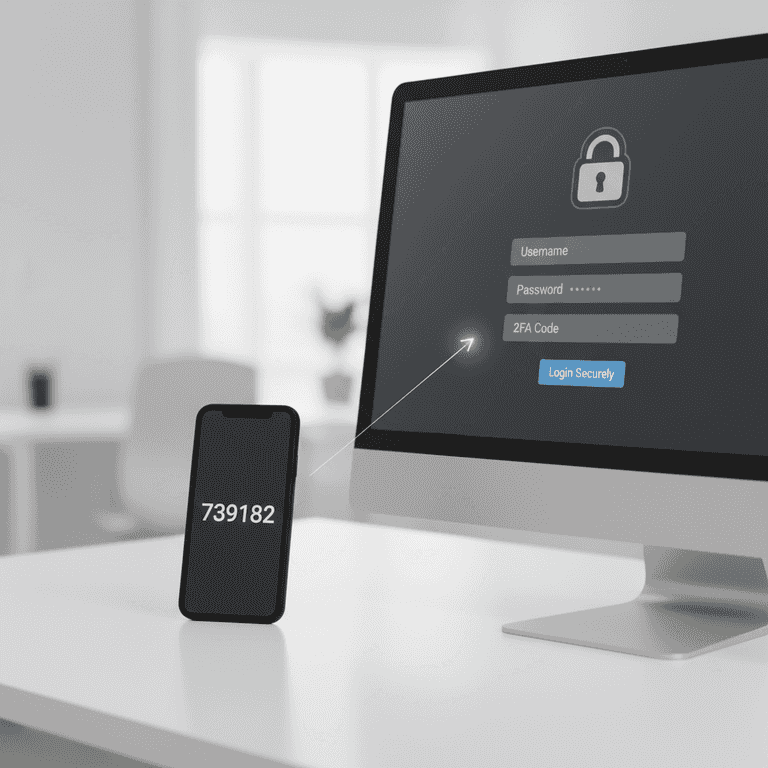
How to Set Up Two-Factor Authentication
Secure your online accounts by adding an extra layer of protection beyond just a password. This guide walks you through enabling two-factor authentication (2FA) to ensure only you can access your personal data.
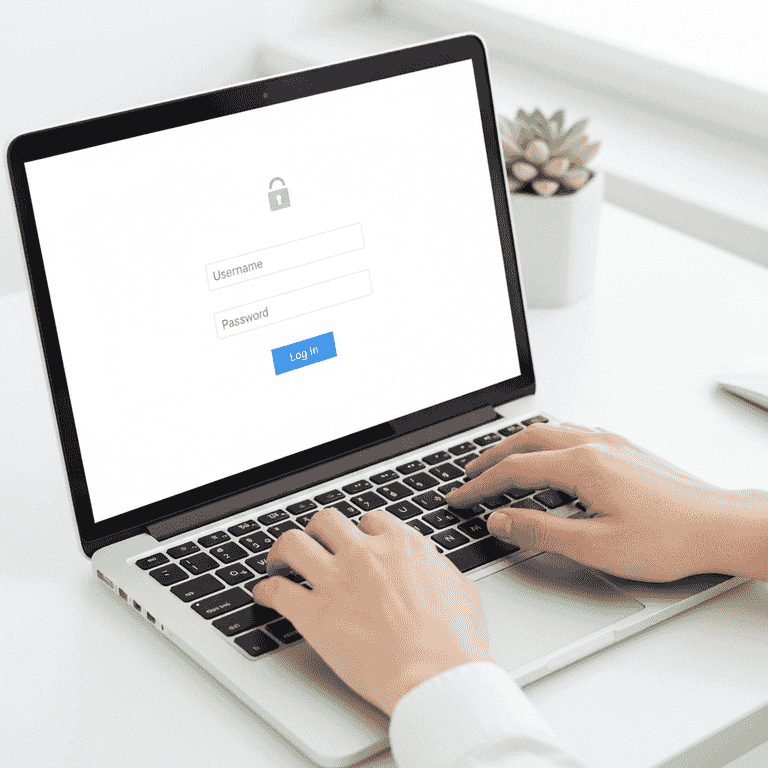
Log in to your account
2 minutesAccess the account you wish to secure using your standard username and password.
Navigate to the official website or application of the service. Ensure you are on the legitimate domain to avoid phishing attempts.
Always check the URL in your browser address bar before entering credentials.
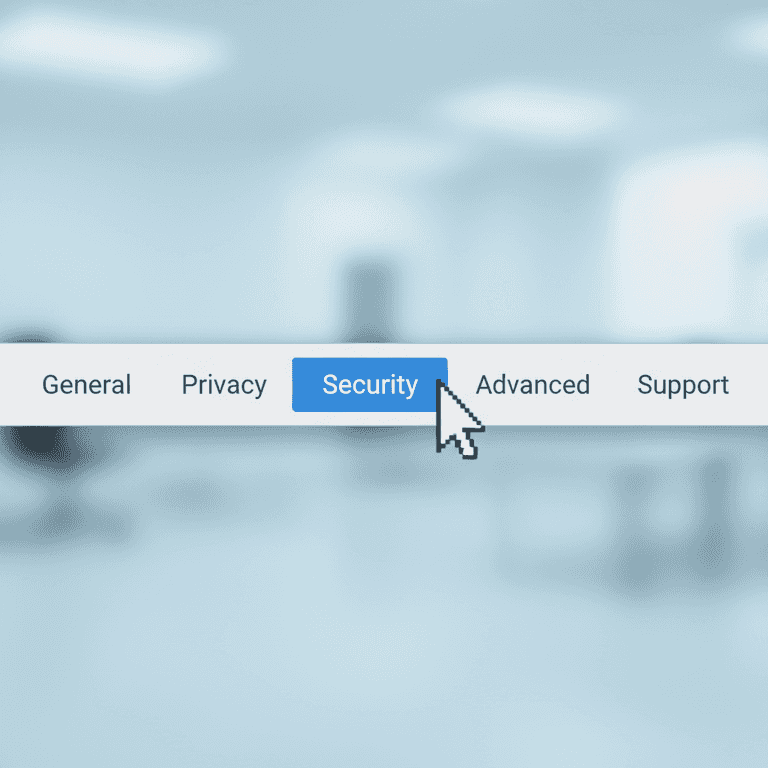
Locate security settings
2 minutesNavigate to the account settings menu and find the security or privacy section.
Most platforms group security features under a tab labeled 'Security', 'Login & Security', or 'Account Settings'. Look for an option specifically mentioning 'Two-Factor Authentication' or '2FA'.
If you cannot find it, use the site's internal search bar and type '2FA'.
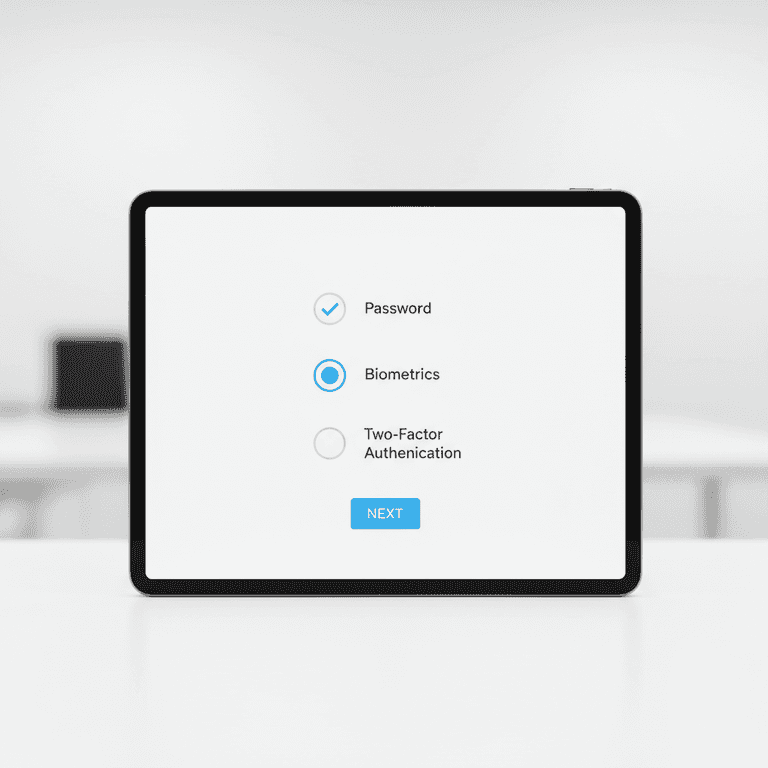
Select your authentication method
1 minuteChoose your preferred 2FA method, such as an authenticator app or SMS text messages.
Authenticator apps are generally more secure than SMS because they are not vulnerable to SIM-swapping attacks. Select 'Authenticator App' if prompted for a choice.
Authenticator apps work offline, making them more reliable than text messages.
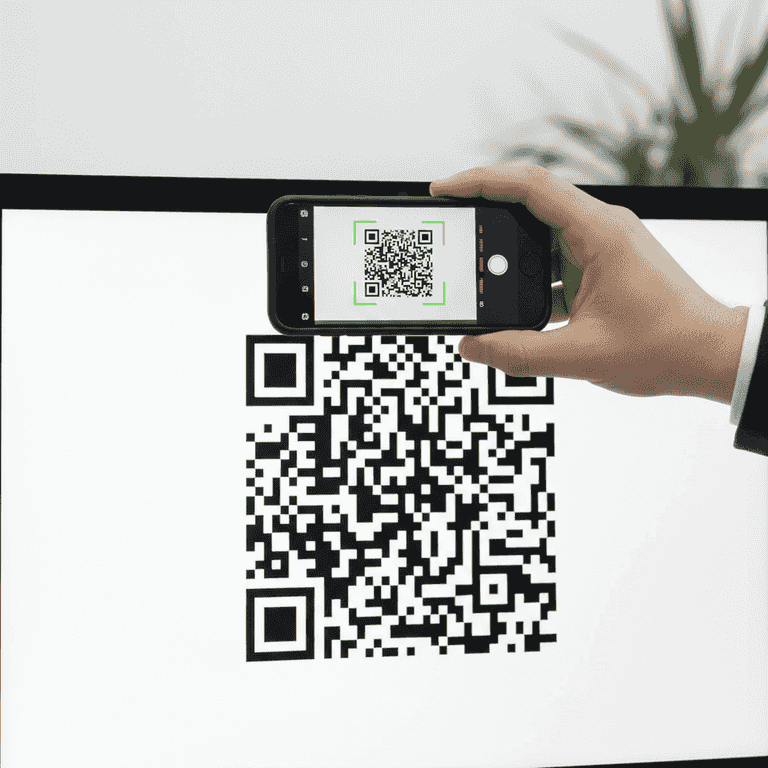
Scan the QR code
3 minutesOpen your authenticator app on your smartphone and scan the QR code displayed on your computer screen.
The app will use your smartphone camera to capture the code, automatically linking the account to the app. This generates a time-sensitive, six-digit code on your phone.
Ensure your smartphone camera is clean for a quick scan.
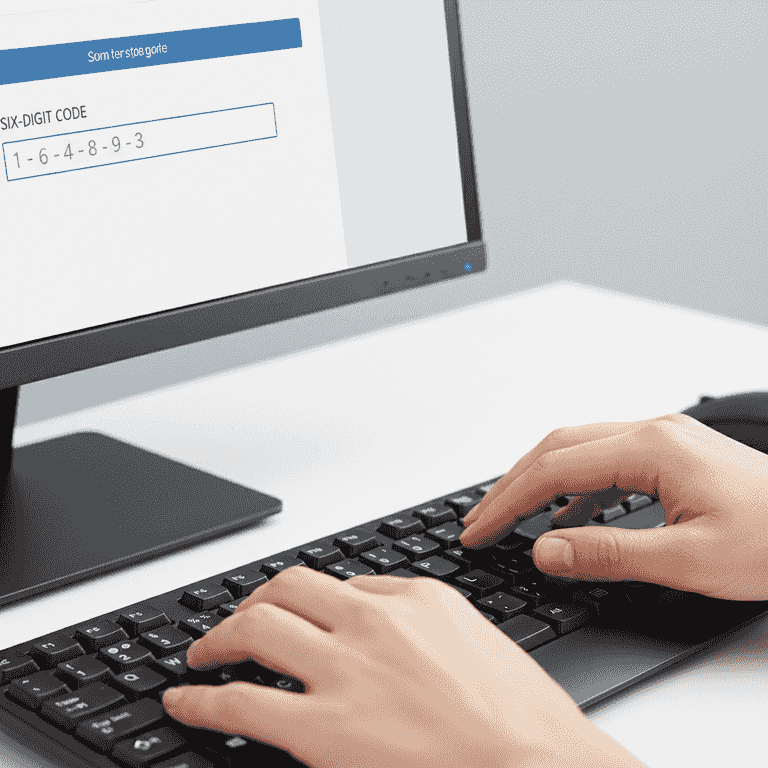
Verify the connection
2 minutesEnter the six-digit code generated by your authenticator app into the website to confirm the setup.
The website will ask you to input the code currently displayed in your app to prove the synchronization was successful. Once entered, the service will activate 2FA for your account.
Be quick; the code in the app usually refreshes every 30 seconds.

Save your recovery codes
5 minutesDownload or print the provided backup recovery codes and store them in a secure location.
These codes are essential for accessing your account if you lose your phone. Keep them in a physical safe or a secure password manager.
If you lose your device and your recovery codes, you may be permanently locked out of your account.
Do not save these as a plain text file on your computer desktop.
Pro Tips
- ●Use a dedicated password manager to store your recovery codes securely.
- ●Enable 2FA on your email account first, as it is the gateway to resetting all other passwords.
- ●Periodically review your 'Authorized Devices' list in security settings to remove old hardware.
- ●Avoid using SMS-based 2FA for highly sensitive accounts like banking or crypto exchanges.