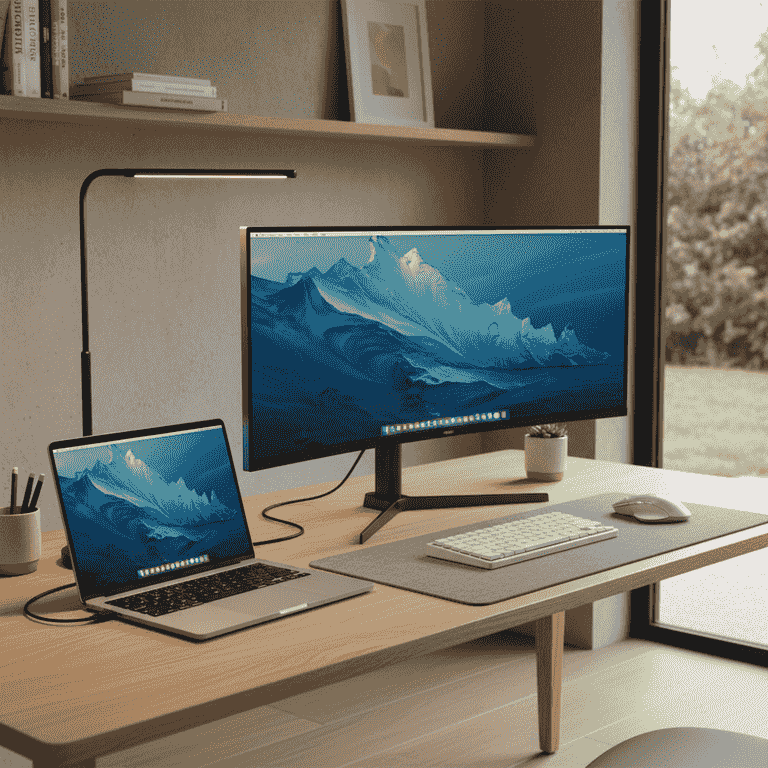
How to Set Up Dual Monitors
Expand your digital workspace by connecting a second monitor to your computer. This guide walks you through the physical connections and software configuration needed for a seamless dual-screen experience.
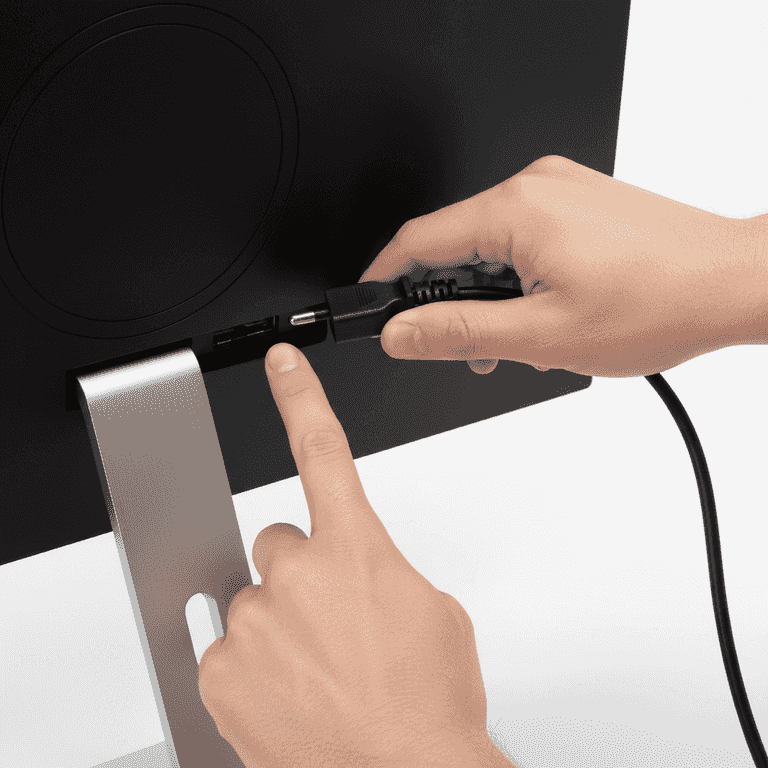
Connect the power supply
2 minutesPlug the power cable into your secondary monitor and connect it to a wall outlet or power strip.
Ensure the monitor is receiving power by checking for an indicator light. A stable power source prevents intermittent flickering or connectivity issues.
Ensure the power cord is not frayed or damaged before plugging it into the outlet.
Use a surge protector to safeguard your monitor hardware from electrical spikes.
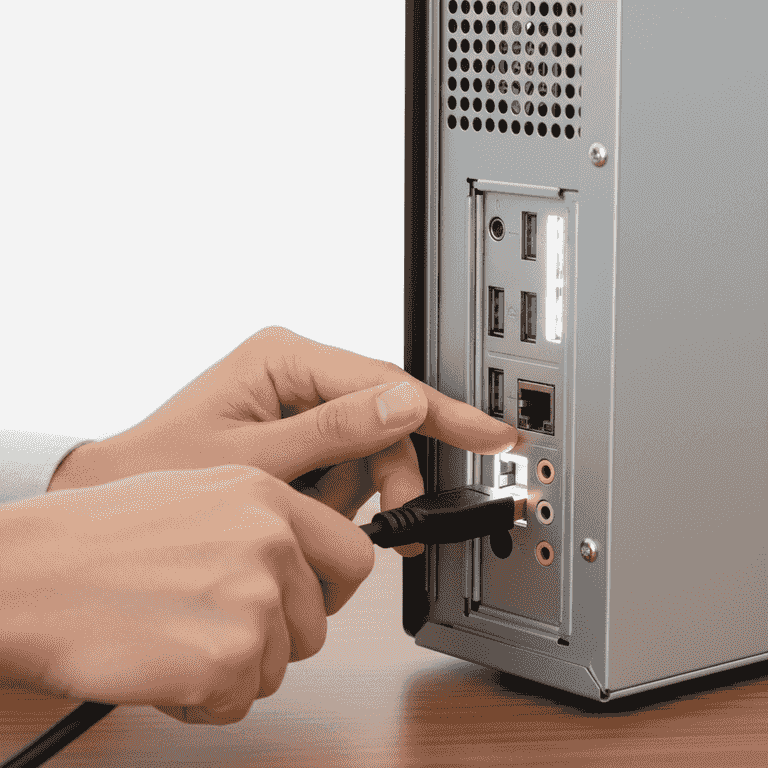
Identify your video ports
2 minutesExamine the available video output ports on your computer and the input ports on your monitor.
Common ports include HDMI, DisplayPort, and USB-C. Matching the correct cable to these ports is essential for high-resolution output.
Check your computer manual if you are unsure which port supports external displays.
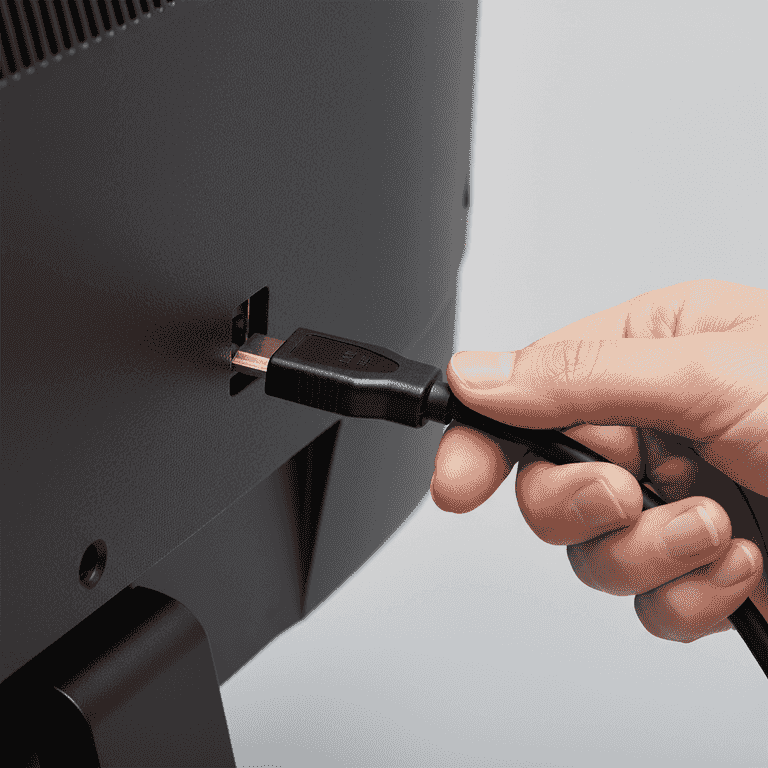
Connect the video cable
2 minutesPlug one end of the video cable into your computer and the other into the secondary monitor.
Ensure the connector is fully seated in the port to maintain a secure signal. Do not force the connection if it feels stuck; check for proper orientation.
Do not bend the cable pins or force the connector, as this can permanently damage the port.
DisplayPort cables often have a locking mechanism; press the release button before trying to unplug them later.
Power on the devices
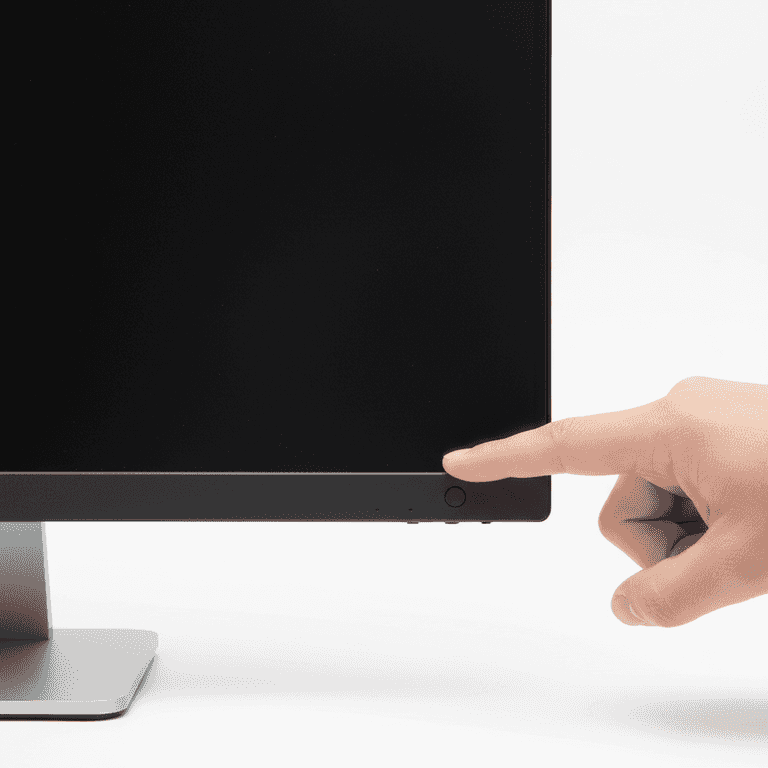
2 minutesTurn on your computer and the secondary monitor.
Most modern operating systems will automatically detect the new display. You may see a momentary flicker as the computer initializes the secondary signal.
If the monitor doesn't turn on, press the 'Input' or 'Source' button on the monitor to select the correct connection type.
Configure display settings
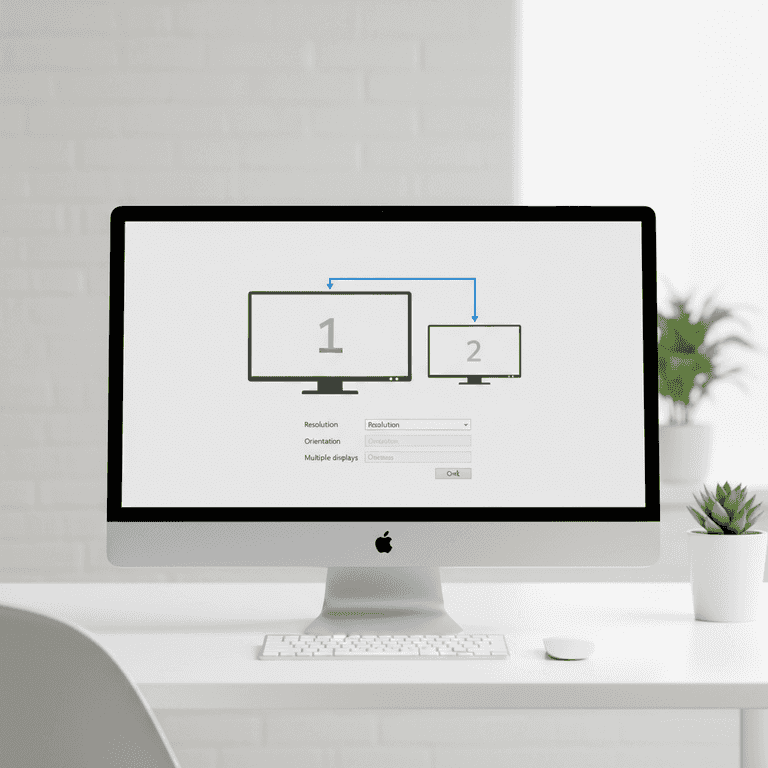
3 minutesNavigate to your computer's Display settings to arrange the screens.
On Windows, right-click the desktop and select 'Display settings'. On macOS, go to System Settings and select 'Displays'. Drag the screen icons to match their physical position on your desk.
Click 'Identify' in the settings menu to see which screen is '1' and which is '2'.
Select display mode
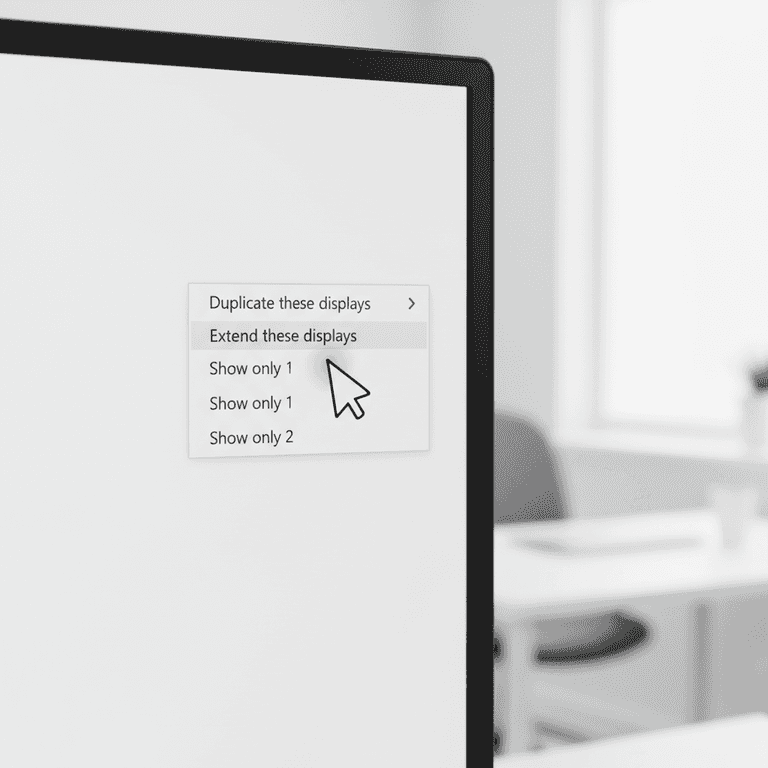
2 minutesChoose between 'Extend' or 'Mirror' mode based on your needs.
Extend mode treats the monitors as one large desktop, while Mirror mode displays the exact same content on both. Extend is typically preferred for productivity.
Use the shortcut Windows+P on Windows computers to quickly toggle between display modes.
Pro Tips
- ●Position monitors at eye level to prevent neck strain during long work sessions.
- ●Use high-quality cables for longer distances to avoid signal loss or screen flickering.
- ●Match the resolution and refresh rate settings of both monitors for a smoother transition when moving your mouse.
- ●Consider using a monitor arm to free up desk space and allow for better ergonomic adjustments.