
How to Set Up a VPN
Protect your online privacy and secure your internet connection by configuring a Virtual Private Network. This guide walks you through choosing, installing, and connecting to a reputable VPN service on your device.
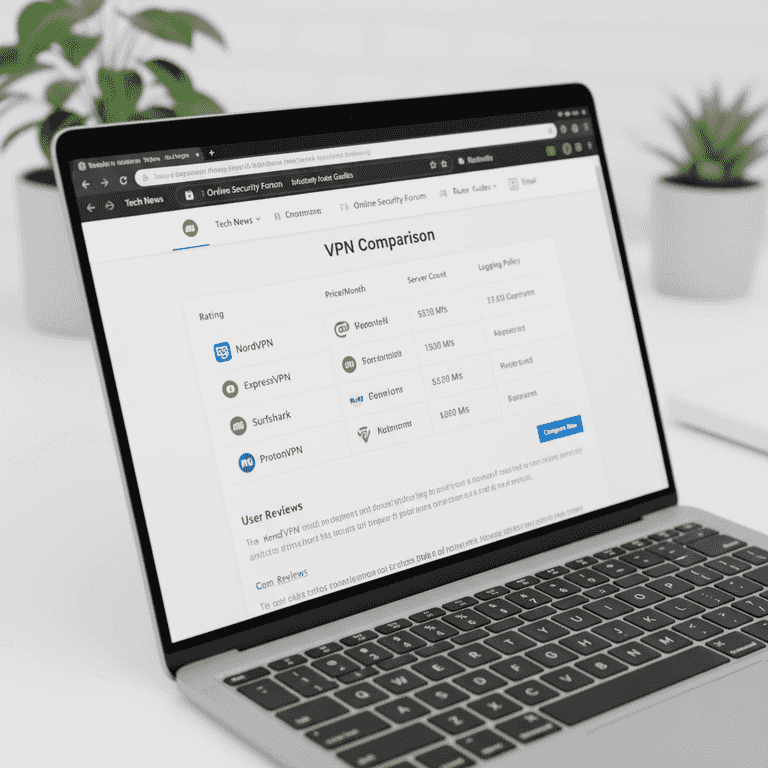
Select a reputable VPN provider
5 minutesResearch and choose a trustworthy VPN service that offers a strict no-logs policy.
Look for providers that have undergone independent security audits. Popular, well-reviewed services typically offer the best balance of speed, security, and customer support.
Check independent review sites for long-term reliability scores.
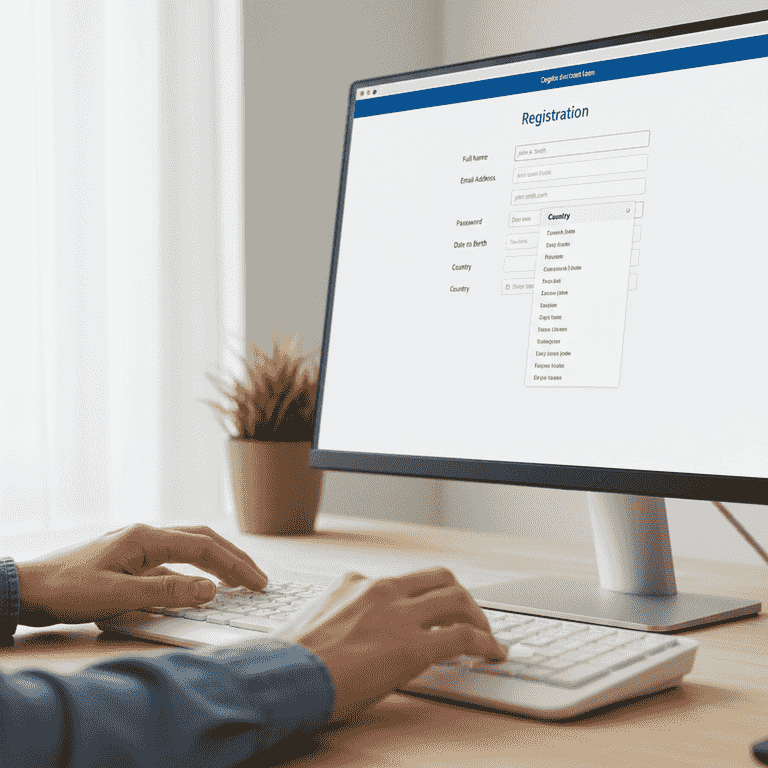
Create an account and subscribe
3 minutesRegister for an account on the provider's official website and select a subscription plan.
Most providers require an email address and payment method to activate your account. Ensure you are on the official domain to prevent phishing.
Never use the same password for your VPN account that you use for your email or banking.
Use a password manager to generate and store a strong, unique password for your account.
Download the VPN application
2 minutesNavigate to the downloads section of your provider's website and select the version compatible with your operating system.
The website usually detects your OS automatically, but you can manually select Windows, macOS, iOS, or Android versions if needed.
Only download the installer directly from the provider's official site.
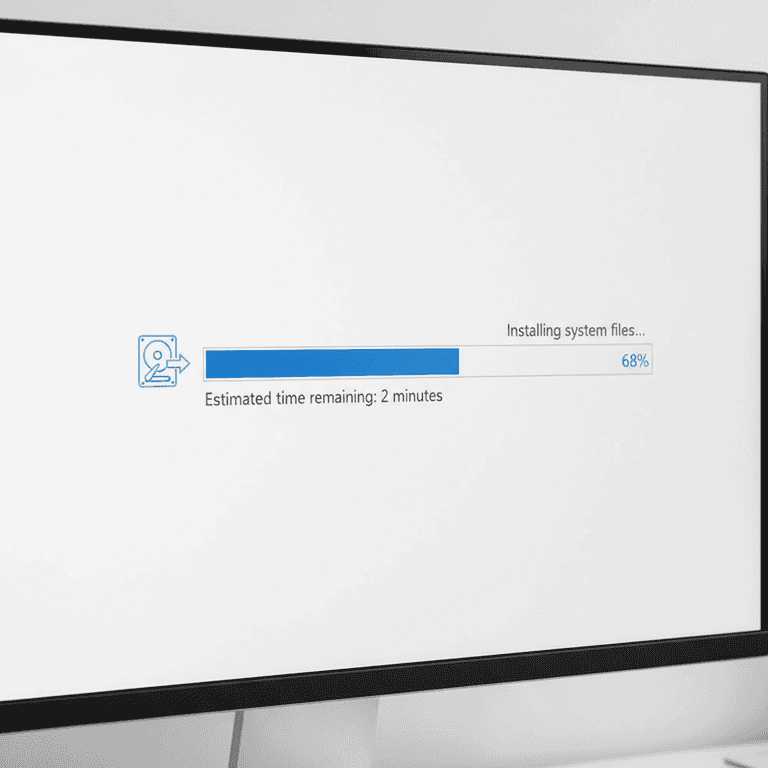
Install the software
2 minutesRun the downloaded file and follow the on-screen installation prompts.
Grant the necessary permissions when prompted by your operating system to ensure the VPN can manage your network settings.
Restart your computer after installation if the application prompts you to do so.
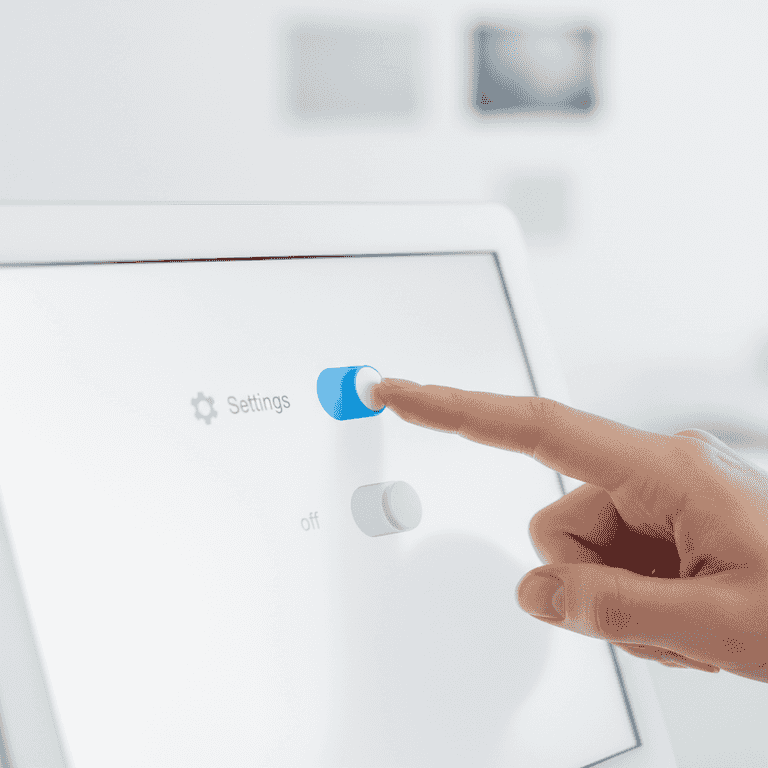
Sign in and configure settings
2 minutesOpen the installed application and log in using your account credentials.
Once logged in, navigate to the settings menu to enable features like 'Kill Switch' or 'Auto-connect' for enhanced security.
Enable the 'Kill Switch' to ensure your internet cuts off if the VPN connection drops.

Connect to a server
1 minuteSelect a server location from the list and click the 'Connect' button.
Choosing a server geographically close to you will usually provide the fastest internet speeds. Once connected, the interface will typically turn green or show a 'Protected' status.
Use the 'Quick Connect' button if you just want the fastest available server.
Pro Tips
- ●Always keep your VPN application updated to ensure you have the latest security patches.
- ●Use a VPN when connecting to public Wi-Fi at cafes or airports to prevent data interception.
- ●If your internet speed drops significantly, try connecting to a different server location.
- ●Check if your VPN provider offers a browser extension for quick toggling while surfing.