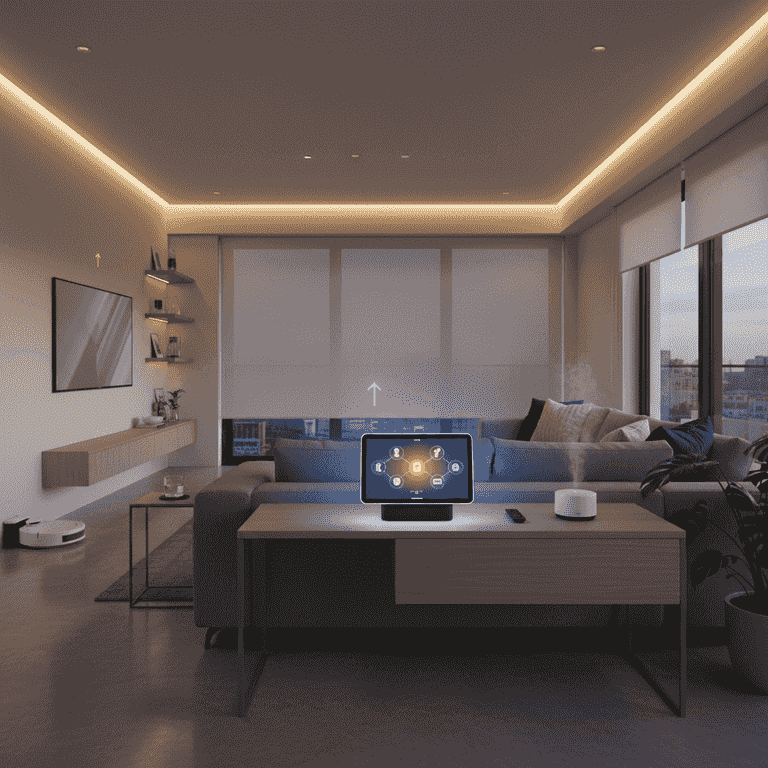
How to Set Up a Smart Home Hub
Centralize your smart home experience by configuring a hub to connect your devices. This guide walks you through the physical installation and digital synchronization process to create a unified automation system.
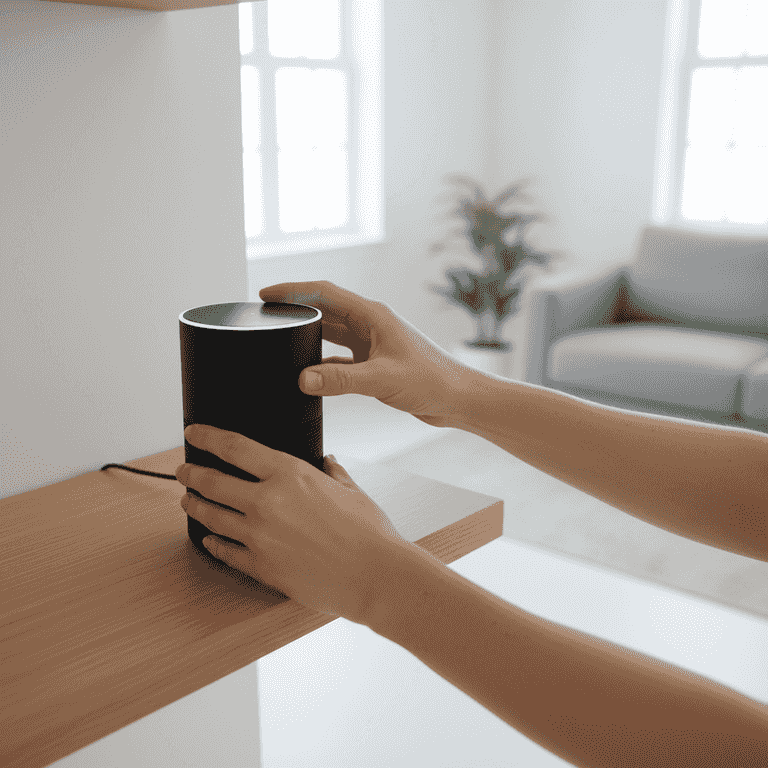
Select a central location
2 minutesPlace your smart home hub in an open, central area of your home to ensure optimal signal coverage.
Avoid placing the hub inside cabinets, behind thick walls, or near large metal objects, as these can block wireless signals and reduce connectivity to your smart devices.
A location near your Wi-Fi router often provides the best initial setup experience.
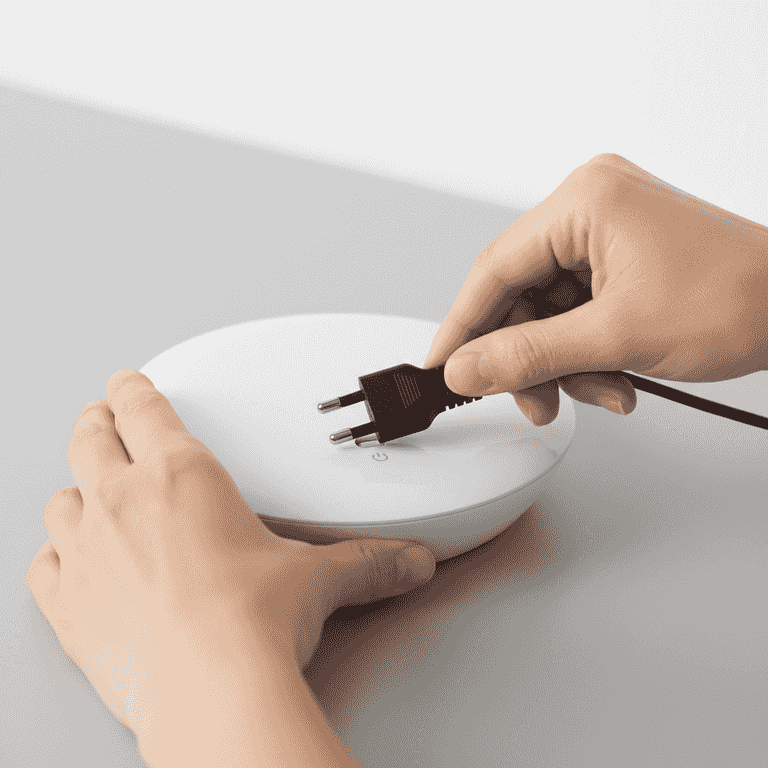
Connect the power supply
2 minutesPlug the power adapter into the hub and then into a wall outlet.
Most hubs will display a blinking light pattern indicating that they are ready to be paired. Wait for the status light to stabilize or change to a setup-ready color.
Ensure the power cord is not pinched or frayed before plugging it in.
Check that the outlet is active by testing it with another device if the hub does not power on immediately.
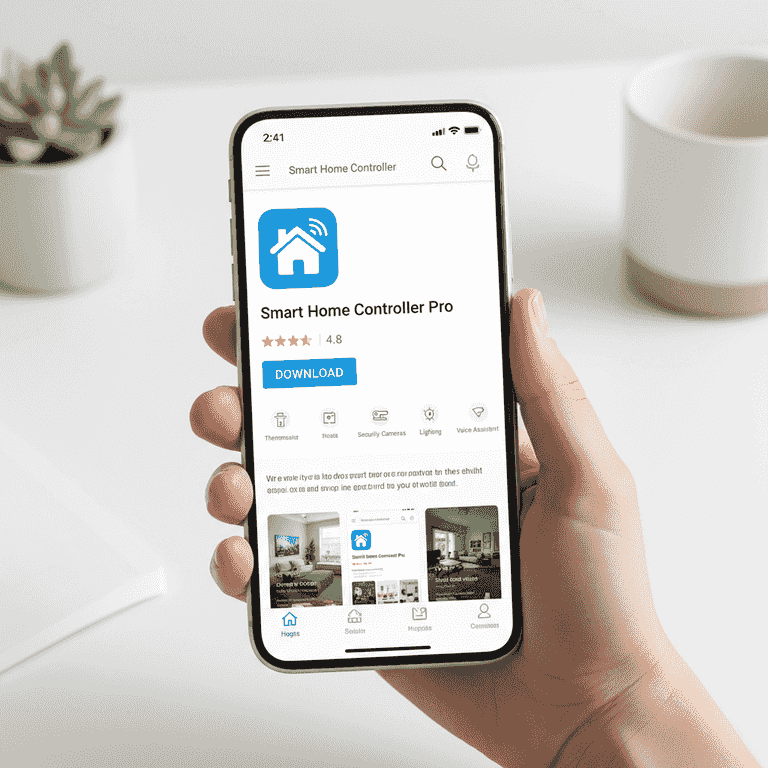
Download the companion application
3 minutesInstall the manufacturer's official app from your smartphone's app store.
The app is essential for the configuration process. Search for the specific brand name of your hub to ensure you download the correct software.
Scan the QR code on the box or the bottom of the device to be taken directly to the correct app store link.
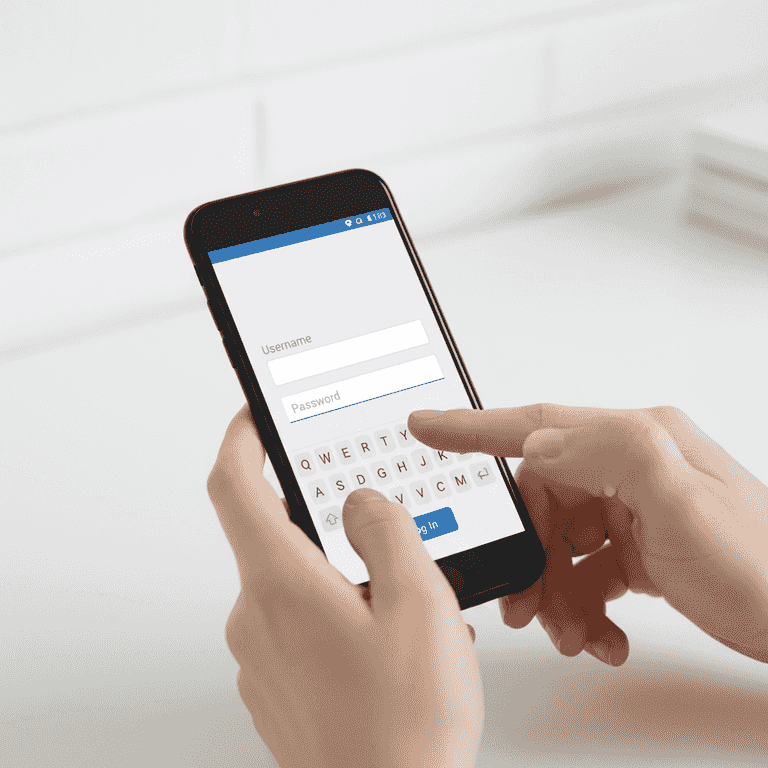
Create an account and sign in
3 minutesOpen the app and create a new account or log in if you already have one.
This account links your hardware to the cloud, allowing you to control your home remotely and receive firmware updates for your hub.
Use a password manager to store your credentials securely.
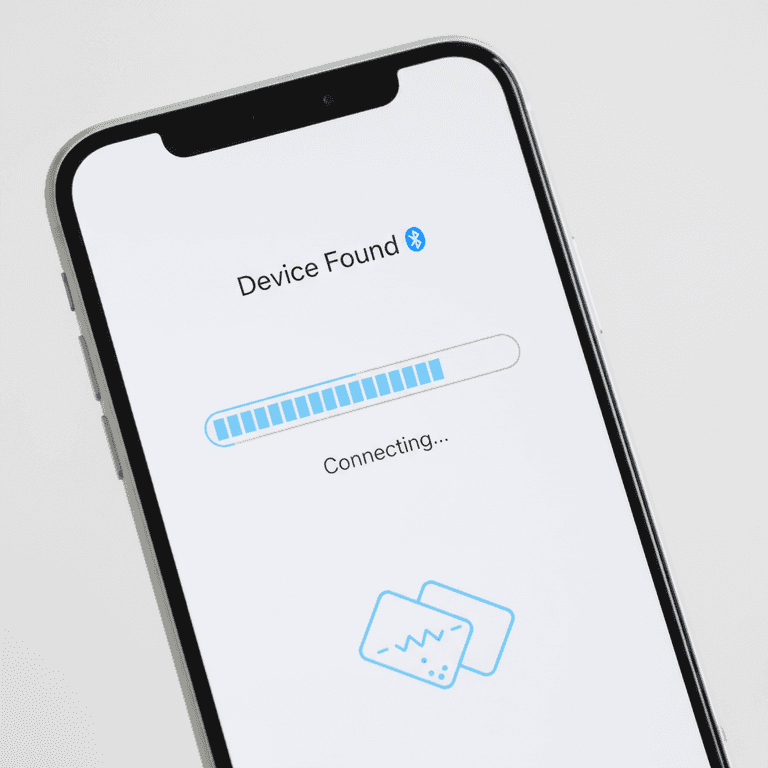
Pair the hub to the app
5 minutesFollow the in-app instructions to discover and pair your hub over Wi-Fi or Bluetooth.
Ensure your smartphone's Bluetooth is enabled during this step. The app will search for the hub and prompt you to connect it to your local Wi-Fi network.
If the app fails to find the hub, restart your Bluetooth or check that your phone is on the same Wi-Fi network you intend for the hub to use.
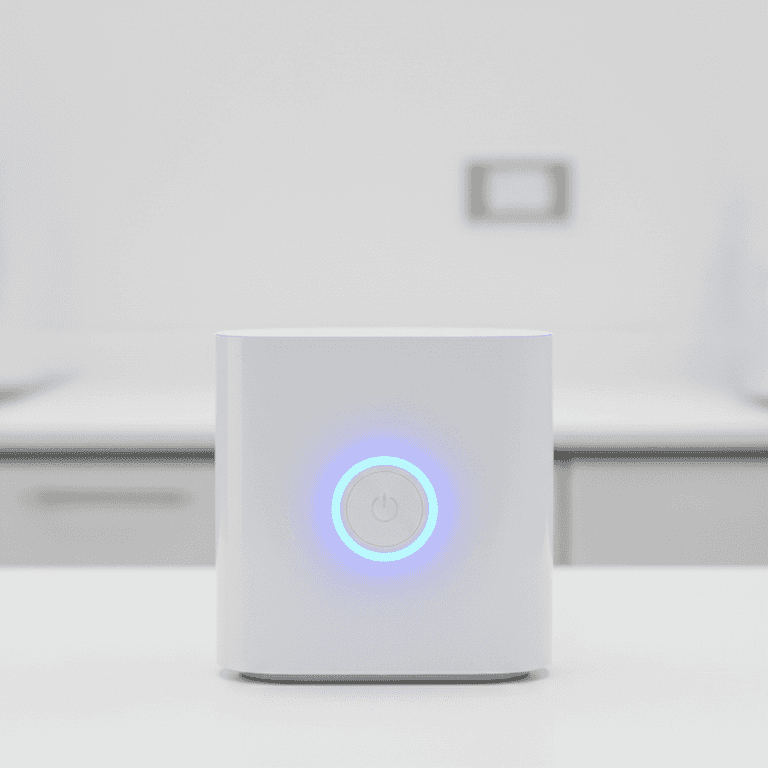
Update the device firmware
5 minutesAllow the hub to automatically download and install the latest firmware updates.
Firmware updates are critical for security and adding compatibility for new devices. The hub may restart itself once the update is complete.
Do not disconnect power while the status light is flashing, indicating an update is in progress.
Do not unplug the hub while the update is in progress, as this can corrupt the device software.
Pro Tips
- ●Name your hub and rooms clearly in the app to make voice commands easier to recognize.
- ●Keep your hub's firmware updated to ensure the latest security patches are applied.
- ●Create a dedicated 'Smart Home' Wi-Fi network if your router supports it to isolate traffic.
- ●Test your voice assistant integration immediately after setup to verify connectivity.
- ●Document your device passwords in a physical secure location.